Next.js App Router Waterfalls: Fix Hidden Performance Lag
By Sumit Saha
Fix hidden request waterfalls in Next.js App Router to reduce TTFB and improve real-world performance. This step-by-step guide shows how to detect sequential fetches, use Promise.all, stream with Suspense, avoid nested layout awaits, and apply smart caching for faster production responses.

Your Next.js app feels fast on localhost. You deploy it, and suddenly something feels... off. The first load is slower than expected. Navigation has a slight delay. TTFB is higher in production. Lighthouse starts complaining about server response time.
Nothing is obviously broken, but the app no longer feels premium. In many cases, the problem is not “bad code.” It is hidden request waterfalls inside the App Router.
This guide walks through the problem step by step, shows how to detect it, and gives practical fixes that make a real difference in production.
Table of Contents
- What a hidden waterfall actually is
- Step 1 — Reproduce the problem intentionally
- Step 2 — Detect the waterfall
- Step 3 — Run independent requests in parallel
- Step 4 — Move dependent fetches down the tree
- Step 5 — Use Suspense for better streaming
- Step 6 — Fix over-fetching with caching
- Step 7 — Avoid nested layout waterfalls
- Step 8 — Use a production checklist before shipping
- Why this matters in 2026
- Recap
What a hidden waterfall actually is
A waterfall happens when multiple async operations run one after another, even though some of them could have started earlier.
That usually looks like this:
- Request A starts and blocks
- Request B starts only after A finishes
- Request C starts only after B finishes
Instead of starting requests in parallel, your app waits at every step.
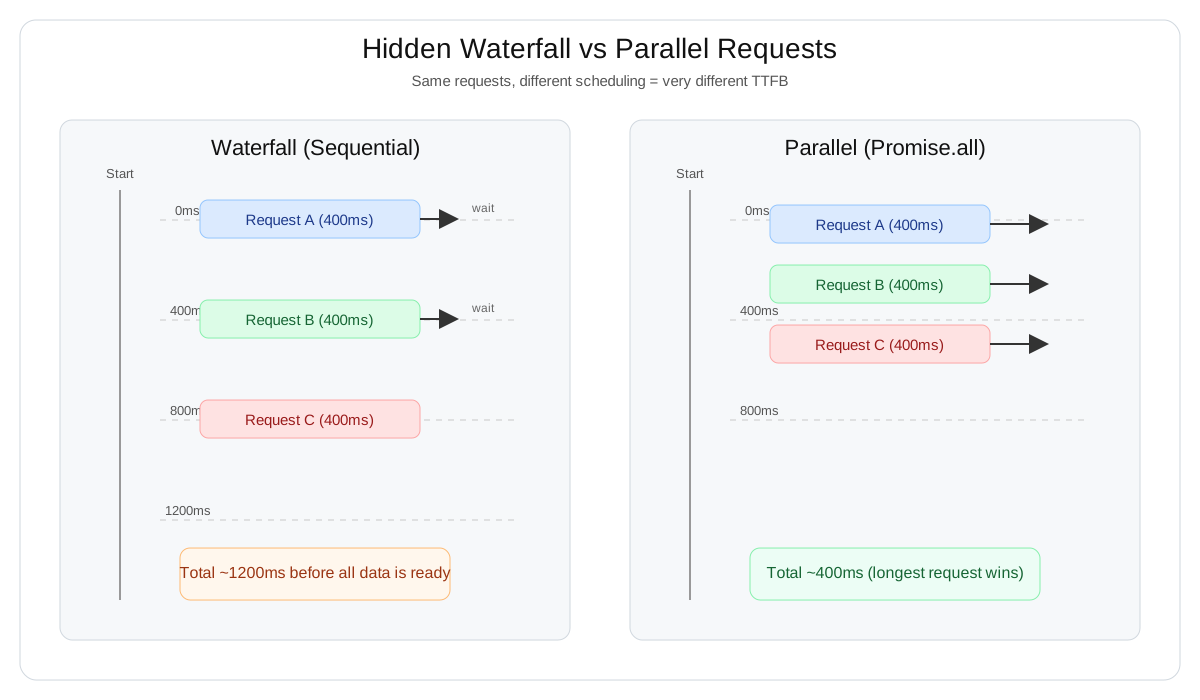
That difference can easily add 300–800ms (or more) in real production traffic.
Tip: Local development can hide this problem because your machine, local network, and hot caches make everything look faster than it will feel for real users.
Step 1 — Reproduce the problem intentionally
Let’s start with a simple server component page that looks fine but creates a waterfall.
// app/dashboard/page.tsx

async function getUser() {
    const res = await fetch("https://api.example.com/user");
    return res.json();
}

async function getProjects(userId: string) {
    const res = await fetch(`https://api.example.com/projects?user=${userId}`);
    return res.json();
}

export default async function DashboardPage() {
    const user = await getUser(); // waits
    const projects = await getProjects(user.id); // waits again

    return (
        <div>
            <h1>{user.name}</h1>
            <ul>
                {projects.map((p: any) => (
                    <li key={p.id}>{p.title}</li>
                ))}
            </ul>
        </div>
    );
}
This is readable and perfectly valid.
But it creates a sequential flow:
- Wait for
getUser() - Then wait for
getProjects()
If each request takes around 400ms, server time becomes roughly 800ms.
Now imagine the same pattern repeated across nested layouts and components. That is where the “my app feels slightly slow in production” problem starts.
Step 2 — Detect the waterfall
Before fixing anything, confirm that the issue is real.
Open Chrome DevTools → Network and check:
- TTFB (Time to First Byte)
- Server response timing
- Whether requests start sequentially instead of together
If you notice this pattern:
- one request finishes
- then another begins
- then another begins
you almost certainly have a waterfall.
Quick timing check with logs
Add temporary timing logs around fetches:
console.time("user");
const user = await getUser();
console.timeEnd("user");

console.time("projects");
const projects = await getProjects(user.id);
console.timeEnd("projects");
If logs look like this:
user: 420ms
projects: 410ms
then total time is roughly 830ms, which confirms sequential behavior.
Warning: Looking at individual request duration is not enough. Two “fast enough” requests can still create a slow page if they run one after another.
Step 3 — Run independent requests in parallel
If two requests do not depend on each other, the fastest fix is Promise.all.
export default async function DashboardPage() {
    const [user, projects] = await Promise.all([
        getUser(),
        getProjects("some-id"), // if independent
    ]);

    return (
        <div>
            <h1>{user.name}</h1>
            <ul>
                {projects.map((p: any) => (
                    <li key={p.id}>{p.title}</li>
                ))}
            </ul>
        </div>
    );
}
Now both requests start immediately.
If each takes 400ms, total time becomes roughly 400ms instead of 800ms.
This is often the single highest-impact improvement in App Router pages.
Tip: If a request can be started earlier, start it earlier. Parallelizing independent work is usually a bigger win than micro-optimizing any one request.
Step 4 — Move dependent fetches down the tree
Sometimes the waterfall is legitimate: one fetch truly depends on another.
For example, you need user.id before you can fetch projects.
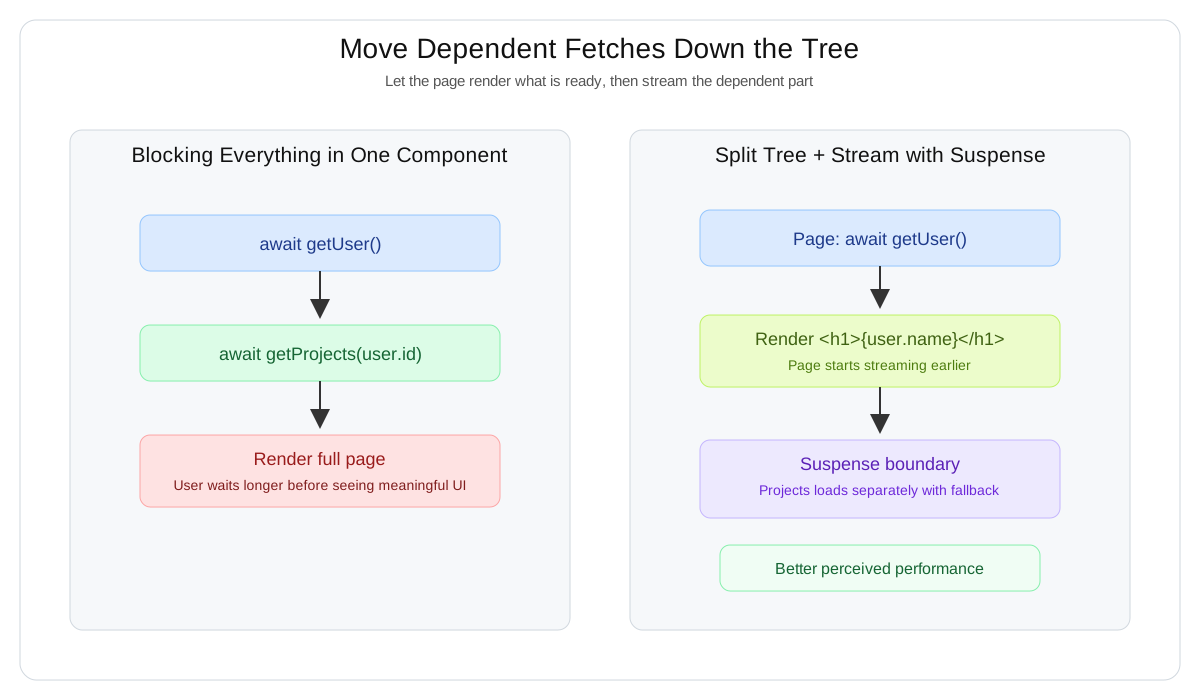
In that case, do not keep stacking all fetches in the same component if it blocks the whole page. Split the component tree so React can render what is ready first.
Page component
// app/dashboard/page.tsx

export default async function DashboardPage() {
    const user = await getUser();

    return (
        <div>
            <h1>{user.name}</h1>
            <Projects userId={user.id} />
        </div>
    );
}
Child component for dependent data
// app/dashboard/Projects.tsx

async function getProjects(userId: string) {
    const res = await fetch(`https://api.example.com/projects?user=${userId}`);
    return res.json();
}

export default async function Projects({ userId }: { userId: string }) {
    const projects = await getProjects(userId);

    return (
        <ul>
            {projects.map((p: any) => (
                <li key={p.id}>{p.title}</li>
            ))}
        </ul>
    );
}
This does not magically remove dependency, but it reduces unnecessary blocking and creates room for streaming.
Step 5 — Use Suspense for better streaming
Now we can improve perceived performance even more with Suspense.
import { Suspense } from "react";

export default async function DashboardPage() {
    const user = await getUser();

    return (
        <div>
            <h1>{user.name}</h1>

            <Suspense fallback={<p>Loading projects...</p>}>
                <Projects userId={user.id} />
            </Suspense>
        </div>
    );
}
What changes here:
- The user name renders first
- Projects load separately
- The page feels responsive earlier
Even when total backend time is similar, the app feels faster because users see meaningful UI sooner.
Tip: Performance is not only about total time. It is also about when users see the first useful content.
Step 6 — Fix over-fetching with caching
Sometimes the problem is not only waterfalls. It is over-fetching.
In Server Components, Next.js fetch can be cached, but many apps accidentally disable caching everywhere.
Example that disables caching
await fetch(url, { cache: "no-store" });If this is used broadly, your app will:
- refetch on every request
- increase server load
- feel slower under traffic
Example with revalidation
await fetch(url, { next: { revalidate: 60 } });This gives you ISR-style behavior:
- responses are cached
- data revalidates every 60 seconds
- repeated requests become much faster
Many “slow in production” issues come from caching misconfiguration, not just rendering logic.
Warning:
no-storeis useful, but expensive. Use it intentionally, not as the default for every data source.
Step 7 — Avoid nested layout waterfalls
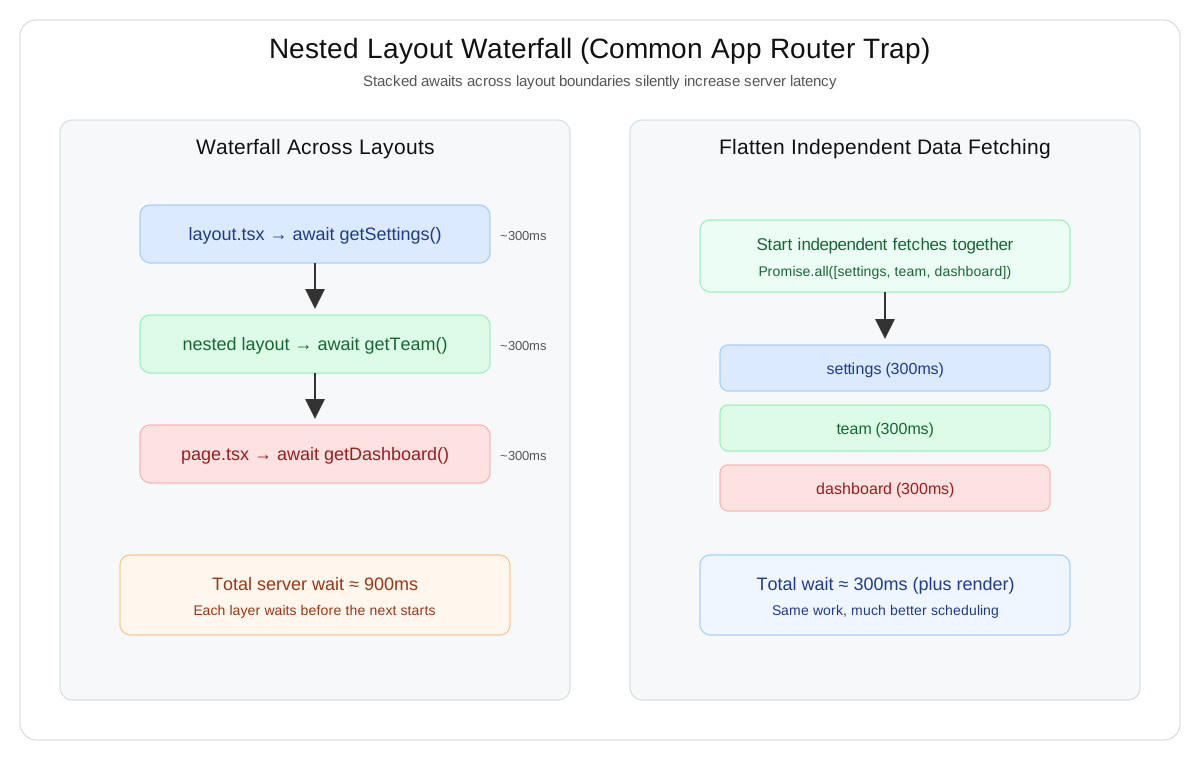
A very common App Router mistake is stacking awaits across layouts and the page.
The pattern that causes hidden latency
// layout.tsx
const settings = await getSettings();

// nested layout
const team = await getTeam();

// page
const dashboard = await getDashboard();
If each request takes 300ms, your total server time can become roughly 900ms.
This is hard to notice because each fetch looks harmless on its own.
Better approach
When possible:
- move independent fetches to the same level
- start them together with
Promise.all - avoid stacking await chains across multiple layout boundaries
The goal is to flatten the data layer where independence exists.
Step 8 — Use a production checklist before shipping
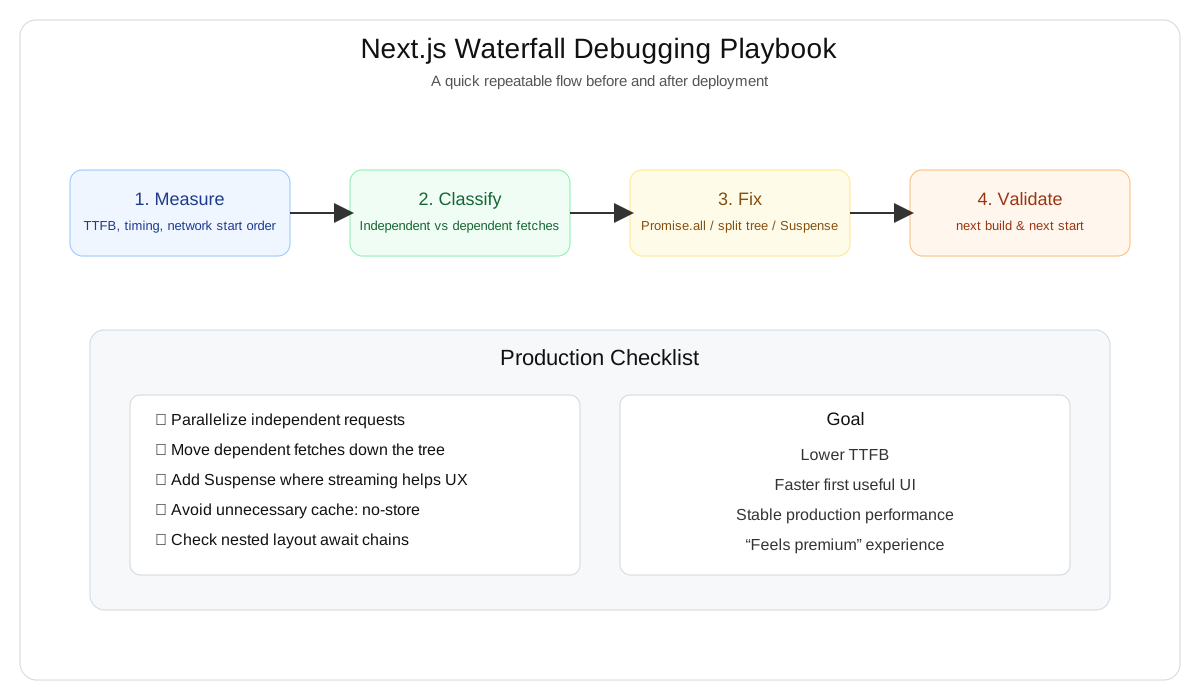
Before deploying, run this checklist:
- Are independent fetches wrapped in
Promise.all? - Are dependent fetches moved deeper into the tree?
- Are you using
Suspensewhere it improves streaming? - Are you avoiding unnecessary
cache: "no-store"? - Are nested layouts stacking
awaits? - Did you test in production mode?
next build && next startLocal dev is helpful, but it is not the final truth for performance.
Why this matters in 2026
Modern Next.js apps are more powerful than ever, but also easier to make quietly inefficient.
You are now juggling things like:
- Server Components
- streaming
- hybrid rendering
- edge/server execution paths
- caching strategies
That means small architectural decisions can compound into real latency.
Most apps are not broken.
They are just quietly inefficient.
And that is exactly why this issue gets missed.
Recap
If your Next.js app feels great locally but slower in production, hidden waterfalls are one of the first things to check.
The practical fix is usually simple:
- Parallelize independent requests
- Move dependent fetches down the tree
- Stream intentionally with
Suspense - Cache responsibly
- Test in production mode
Small structural changes can create a surprisingly large performance win.
That is often the difference between an app that merely works and one that feels polished.
Show your Support
- ⭐ Follow this GitHub Repo
- 🍿 Subscribe on YouTube
- 🧑🏫 Follow us on LinkedIn, Facebook and X